This extension does depend on having a printer already set up and configured suitable that the lp command can print to it. I’m not sure what exact cponfiguration is needed because for me it “just worked”. Under the hood, it runs something like he following command, that you can try in Terminal:
echo "test" | lp
If that works (prints a page with “test” on it) then PopClip extension ought to work too.
I had success running the terminal command (echo “test” | lp), but when I highlight some text and click the print icon in the PopClip pop-up menu, it returns an “X” and doesn’t print. Something in my system must be blocking it. As a workaround, I use TextSniper, paste into TextEdit and then print. I’d love to get the PopClip Print extension to work. Thanks.
Did you install the print extension recently or has it been on the system for quite a while? If the latter please try re-downloading the latest version of the extension and try again.
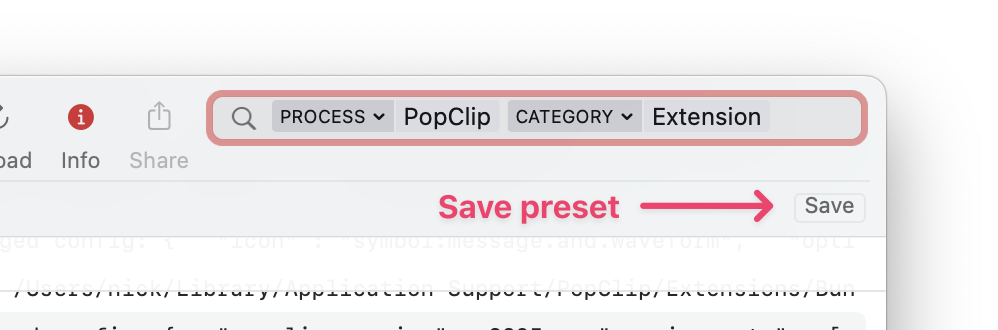
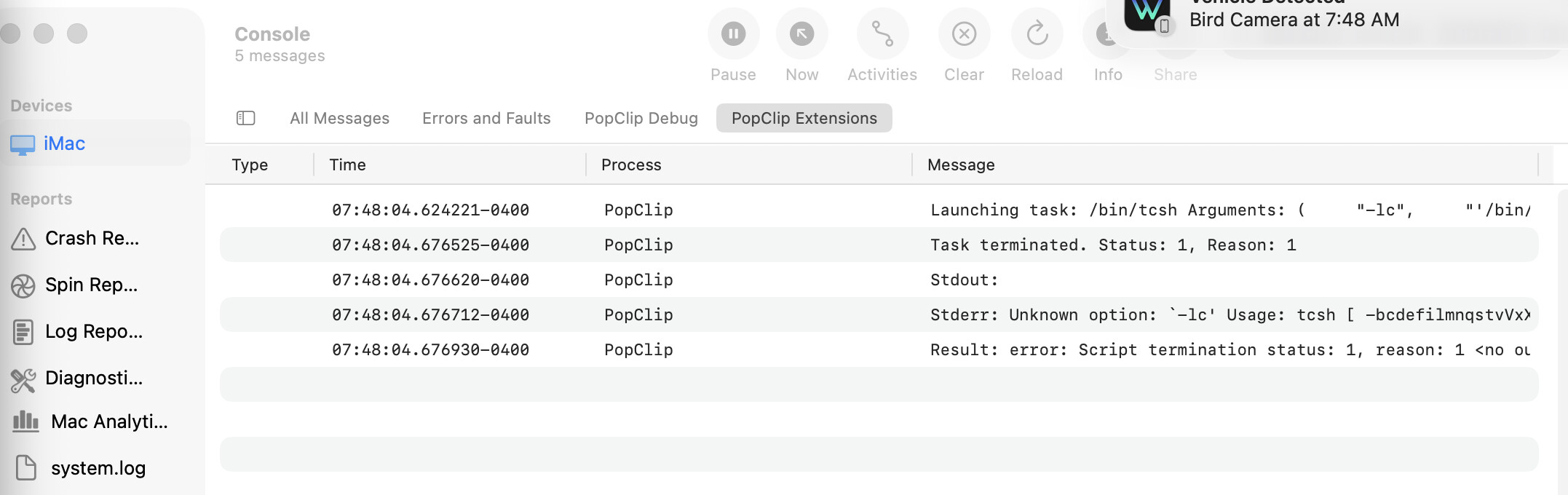
Thank you. I was able to run the Terminal Command; quit PoPClip and then restart PopClip; open Console and create the PoPClip Extensions preset; start the console; highlight some text and run the PoPClip Print action; take screenshot of the Console. Here’s the screenshot:
It seems that the problem is not the Print extension specifically but rather the configuration of macOS. You have tcsh as your default shell and that is not compatible with the way PopClip calls shell scripts.
I will need to make a change to PopClip to support tcsh.
Alternatively you could change your shell to zsh (the macOS default). Did you speciically choose to use tcsh?
I don’t know what either one of them is. Can you give me a terminal command to change the shell to zsh? Maybe that’s the easiest way to go. And no, I didn’t specifically choose to use tcsh. But we’re getting closer to a solution, and I appreciate your time to make this work.
I ran the terminal command, restarted, and … now the Print Extension works. Thank you for helping me get this going. I really appreciate the access to your troubleshooting with me.
Any idea how your shell came to be different? Is it perhaps a work computer or one that had previously set up by soemone else? I’m trying to get a handle on how common this might be for other users.
I have no idea how the shell came to be different.
I’m a writer who retired in 2015. I’m the sole owner of my iMac 24" M1 computer which I bought from Apple. I also bought my previous iMac from Apple. It was an Intel-based computer.
I used the earlier iMac for personal stuff and also for work.
My current iMac has been in my home since I bought it. I’m the only one that uses it.
The last 25 years of my work life were as press officer for my local sheriff’s office. The agency had a totally professional IT department that could not possibly have been the source of my shell switch. The agency was a Windows shop.
The only thing I can think of is that maybe some application I acquired may have changed the shell. That also seems unlikely. I only use applications from trusted sources. I never download pirated software.